
The video guide is available exclusively for active users who purchase and recharge cards through us. Reach out to Support to check your eligibility.
If you’re trying to run a Facebook campaign and encountering errors, even though there are funds on your prepaid Visa or Mastercard, this guide is for you.
This issue is not related to your card’s balance or validity, but rather to Meta’s (Facebook’s) payment system. Let’s explore what’s going on and how you can resolve it.
Understanding the Problem
Facebook/Meta may occasionally start rejecting payments from your card, even if you’ve used it successfully for a while. This is a common issue that arises directly from Meta’s payment system, and not from any fault of your card.
Important Considerations:
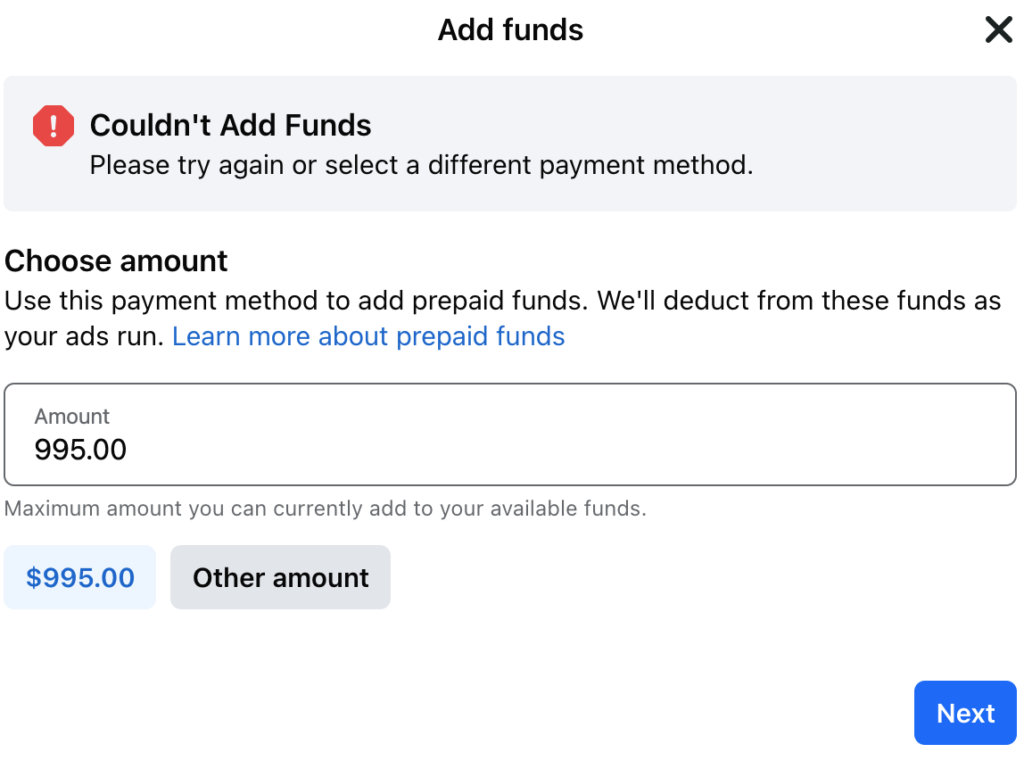
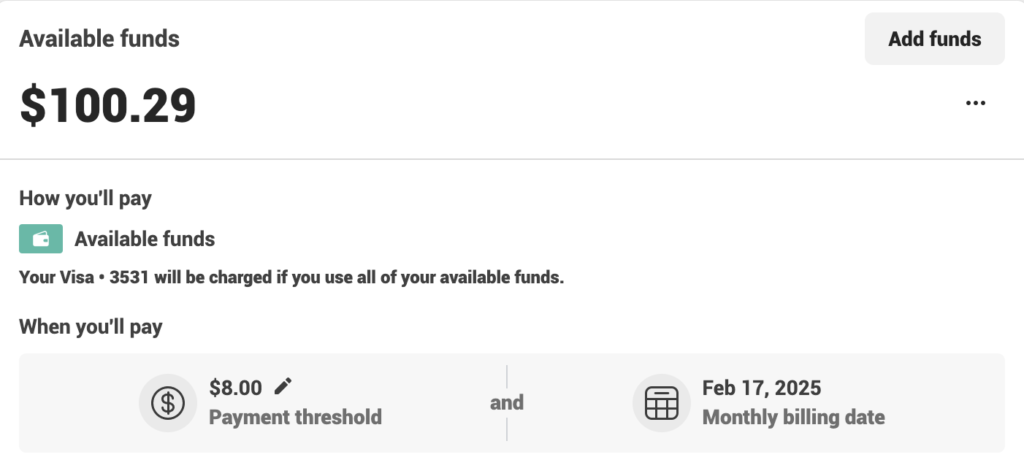
- If you’re using a FCFA-based card or any other prepaid card, it’s a good idea to set up a prepaid Ads account. In this setup, you deposit money into your Ads account and then use the balance to pay for your campaigns. This approach prevents Meta/Facebook from attempting to charge your card at unexpected intervals, which could result in additional charges.
Why Facebook/Meta Declines Payments
Facebook/Meta treats Ads accounts as commercial profiles separate from your personal social media profile. So, when your payment method is declined, and you’re prompted to try a different payment method, it doesn’t indicate an issue with your card. It simply means that your Ads account has been limited.
To lift this limitation, Meta will require you to go through a lengthy process, including submitting Know Your Customer (KYC) data and providing proof of your business.
Solution: Create a New Ads Account
Creating a new Ads account is an easy and free solution, and you are not restricted to just one or two accounts.
Follow these steps to create a new Ads account:
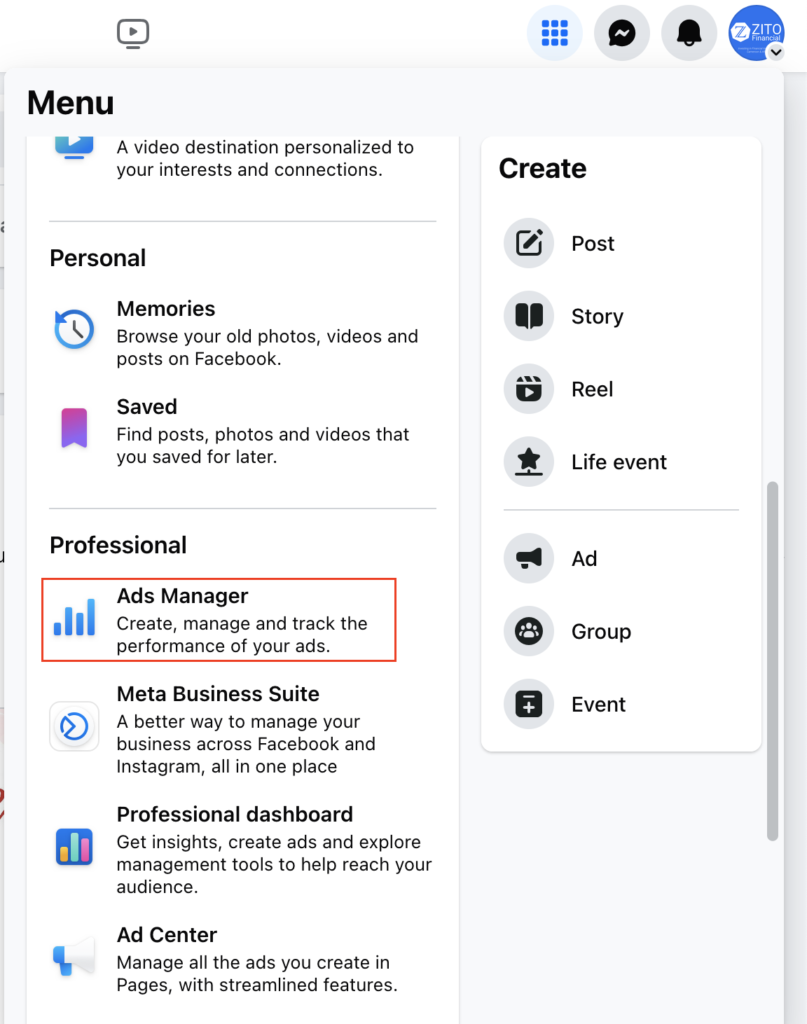
- Login to your Facebook account and navigate to Ads Manager.
2. Select Billing and Payment to be redirected to the Billing Hub.
- Visit Billing Hub
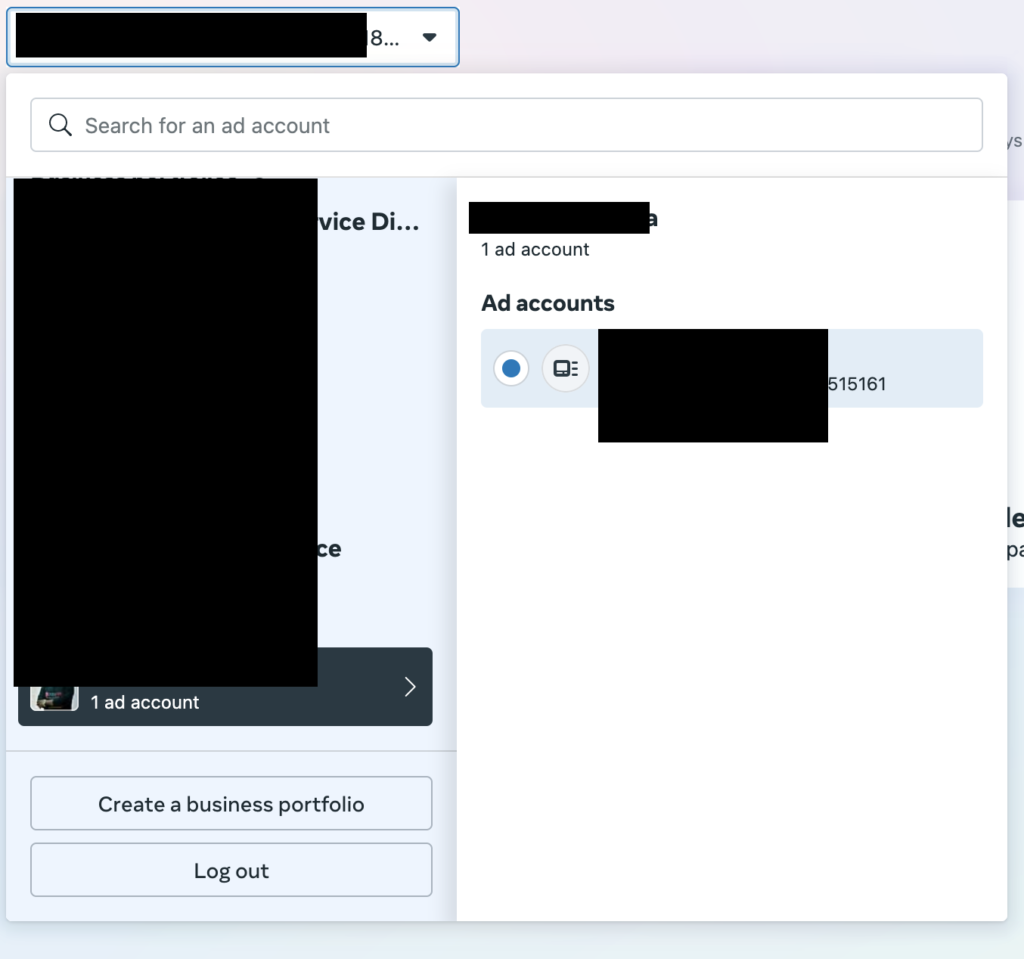
On the top left of the page, you’ll see the Ads Account Name & ID with a dropdown menu beside it.
- Visit Billing Hub
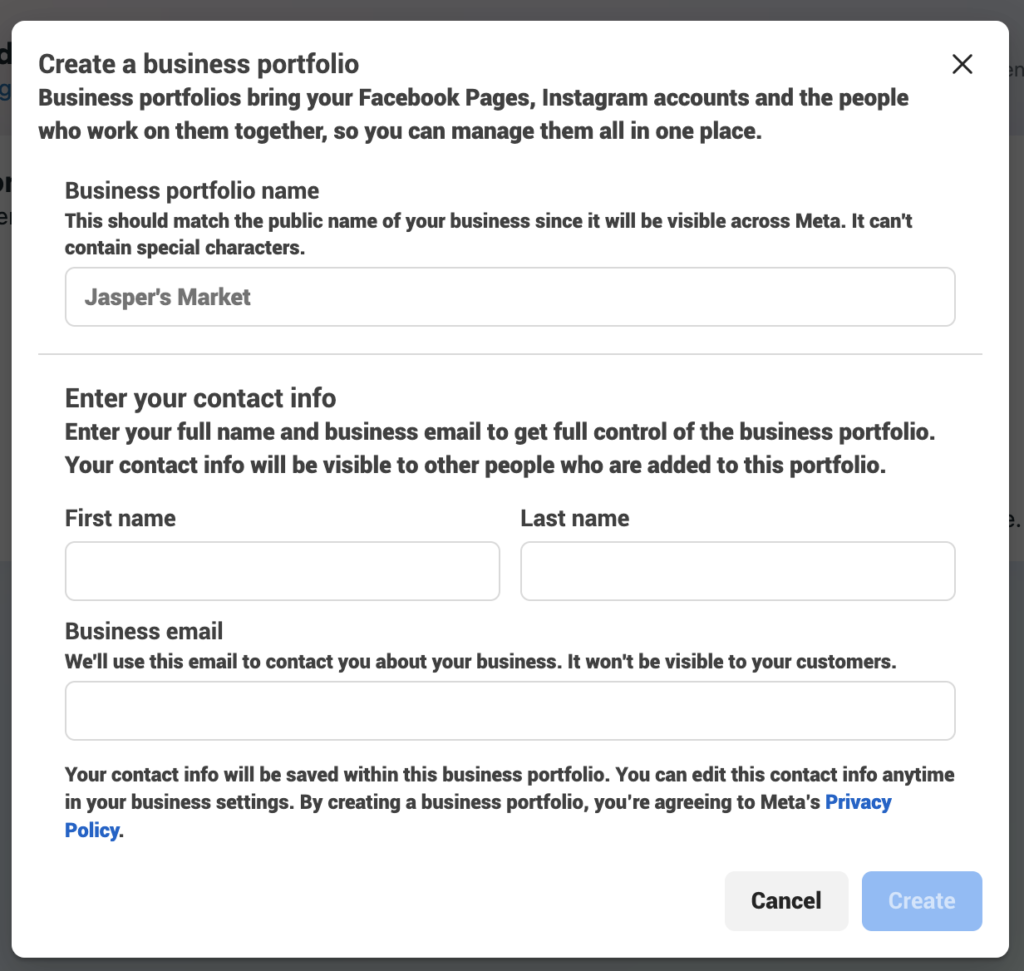
- If you don’t see any business portfolios listed, select Create a Business Portfolio.
Enter the correct and accurate business information when prompted.
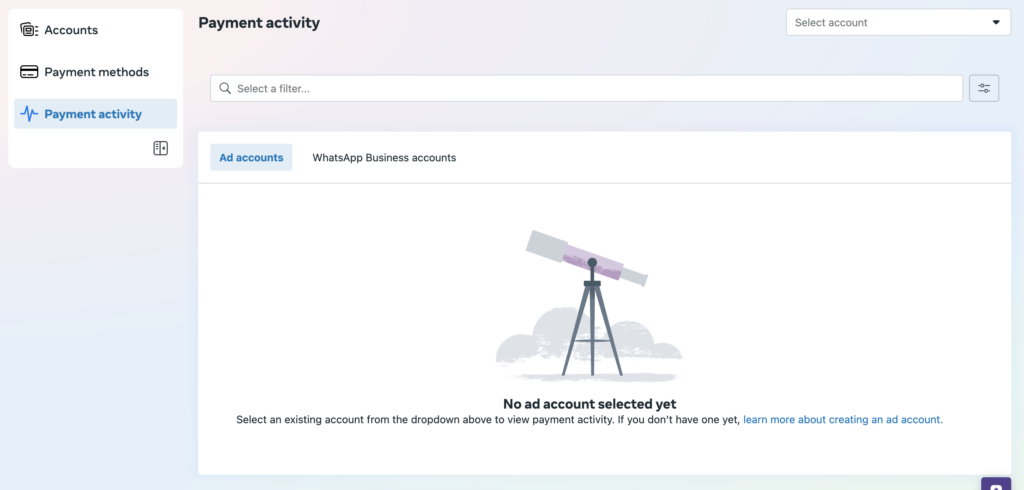
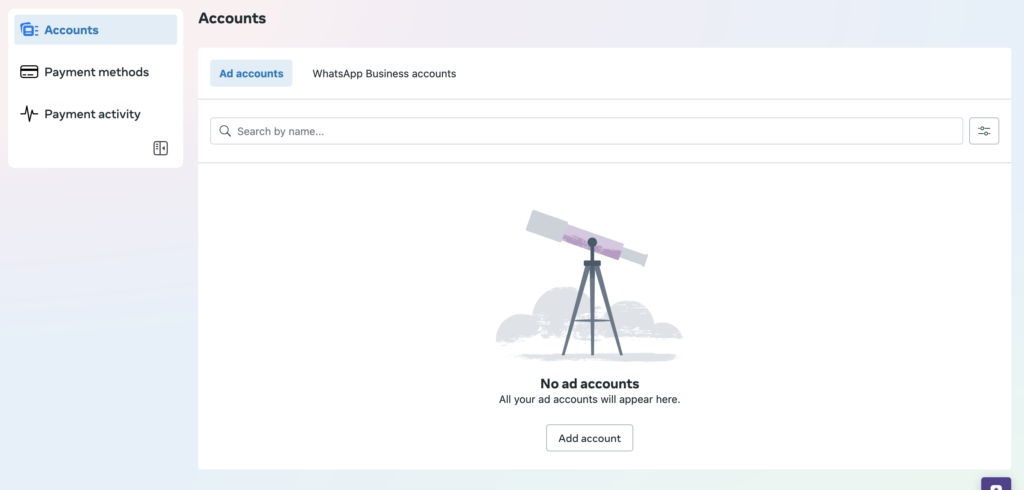
After the Ads account is created, you will be redirected to the Payments Activities Tab. Click on Accounts, then Add Account.
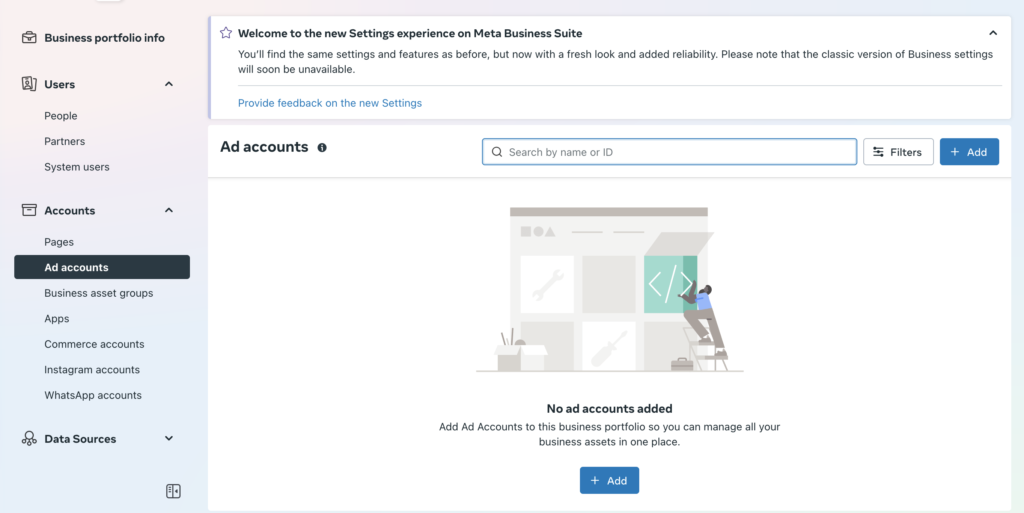
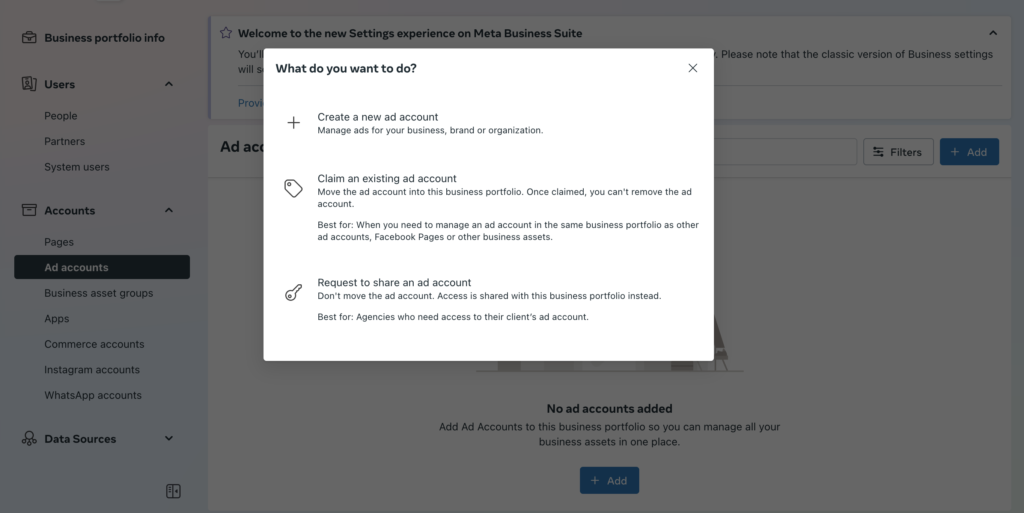
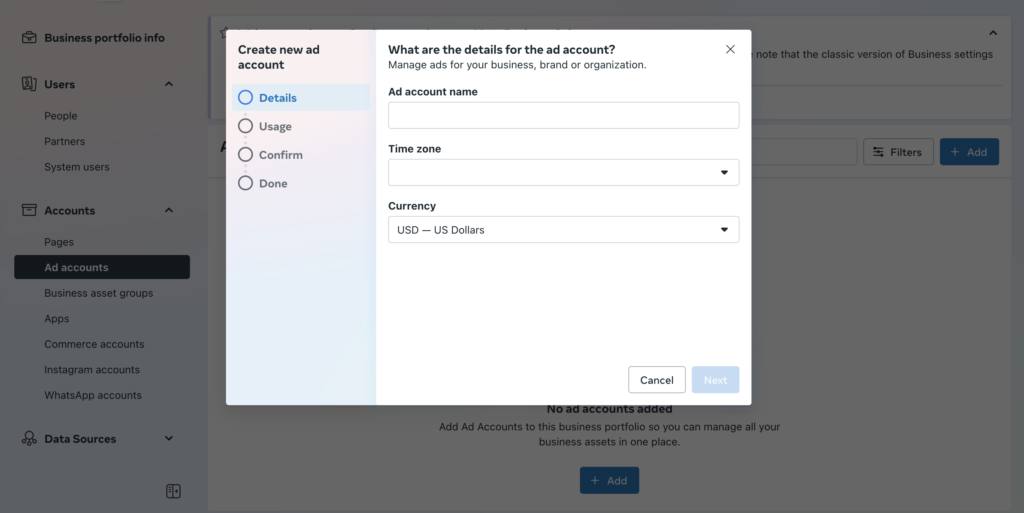
Once your Ads account is set up, return to the Billing & Payment section, add your card, and you’ll be ready to run ads again.
By following these steps, you should be able to resolve payment issues with your prepaid Visa/Mastercard and get your Facebook campaign running smoothly once again.
If you encounter any issues during the process, feel free to refer to the resources available in the Business Help Center for further assistance.
🚀 Top-Up Your ZitoCard Anytime, Anywhere! 🚀
Say goodbye to long queues and hello to convenience! 💳
With ZitoCard, you can load your card directly using MoMo from the comfort of your home or on the go! 🔄📱
✨ Why Choose ZitoCard?
✅ Load with MTN Mobile Money anytime
✅ Shop securely with Visa & Mastercard
✅ No need to visit the bank – You’re in control!
💳 Accepted Everywhere!
📞 Call us: +237 651 029 319
🌐 Visit: www.zitocard.com
#ZitoCard #MoMoTopUp #CashlessConvenience #DigitalPayments